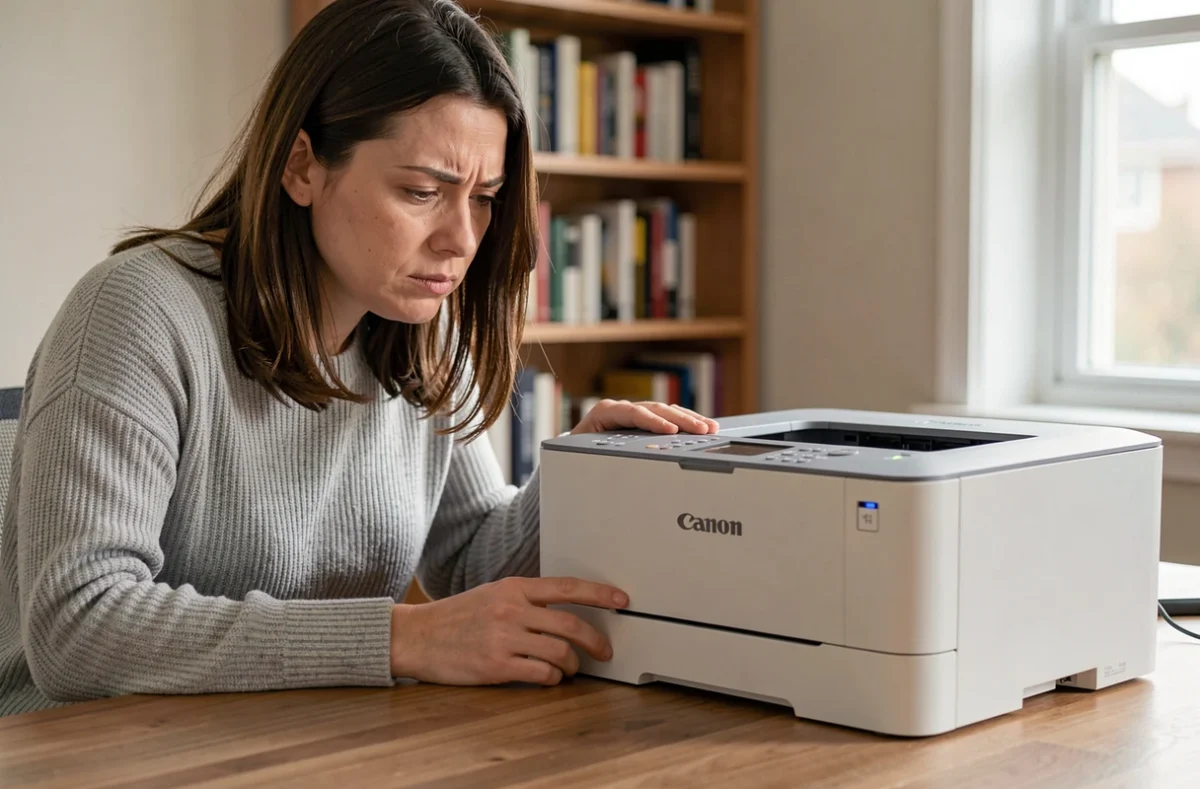
Canon Pixma printers represent a significant portion of the home and semi-professional printing market. When one of them refuses to print, displays an error code, or produces blank pages, the usual reflex is to initiate a head cleaning or reinstall the driver. These actions are not always sufficient, and some malfunctions originate well before the ink cartridge.
Local Copy and Printing from the Computer: Two Distinct Diagnoses
Before any software manipulation, one step can save considerable time: launch a copy directly from the printer’s panel. Placing a document on the scanner glass, pressing the copy button, and observing the result provides information that the driver will never supply.
If the copy comes out correctly, with consistent colors and sharp text, the printing mechanism is working. The problem then lies on the computer side: a blocked queue, a corrupted driver, or an unstable USB or Wi-Fi connection. Conversely, if the copy shows streaks, blank areas, or does not come out at all, the failure is hardware-related: clogged nozzles, empty or improperly seated cartridges, or a faulty paper feed.
This distinction prevents wasting time on resolving a Canon Pixma printing issue on the software side when the cause is physical, and vice versa. General guides often mix the two, leading to unnecessary manipulations.
Canon Pixma Firmware: The Update No One Checks
Canon support pages still publish firmware updates for many Pixma models. Some fix printing bugs, while others address security vulnerabilities, particularly to prevent unauthorized replacement of driver files on the computer.
This step is rarely included in standard troubleshooting tutorials. It deserves to be systematized, especially after an operating system update. An outdated firmware can cause communication errors between the printer and the recent driver, generating error codes that appear unrelated to the hardware.
The procedure varies by model. On Pixma printers equipped with an LCD screen, the update is often initiated from the device’s settings menu, provided it is connected to the network. For models without a screen, the download is done through the official Canon website, in the support section for the relevant product.
Precaution When Downloading
Recent guides recommend downloading drivers and firmware exclusively from the official Canon website. Third-party sites offer repackaged drivers that may contain modified files. Checking the URL and the file signature before installation remains a basic precaution.
Driver Compatibility After Upgrading Windows or macOS
A recurring scenario affects owners of older Pixma models: after upgrading to a recent version of Windows or macOS, the printer stops working. The previous driver is no longer compatible, and Canon does not always release a new driver for end-of-life models.
The absence of a recent driver can become the main cause of the printing problem. In this case, repeatedly cleaning nozzles or resetting will not change anything. Several options exist:
- Check on the Canon website if a generic driver covers the affected model, even without explicit mention of the exact serial number.
- Maintain an old compatible environment (a machine running Windows 10, for example) to continue using the printer if replacement is not feasible.
- Test open-source drivers like Gutenprint (formerly Gimp-Print), which support certain Canon models abandoned by the manufacturer, with variable results depending on the range.
Field reports vary on this point: some users achieve acceptable print quality with generic drivers, while others notice color shifts or limitations in available settings.
Cleaning Canon Pixma Nozzles: When and How to Do It Effectively
Automatic nozzle cleaning, accessible from the printer menu or the Canon utility on the computer, consumes ink with each cycle. Launching three or four consecutive cleanings without checking the result between each pass amounts to wasting cartridges.
The effective method follows a precise order:
- Print a nozzle check pattern (a function integrated into the printer menu) to identify which colors are problematic.
- Launch a single cleaning cycle, then reprint the pattern for comparison.
- If the pattern does not improve after two cycles, proceed to deep cleaning, a distinct option from standard cleaning on most Pixma models.
- As a last resort, remove the print head (on removable head models) and partially soak it in warm distilled water for a few hours to dissolve dried ink in the nozzles.
A deep cleaning consumes significantly more ink than a standard cycle. It should not be used as a first resort.
Cartridges and Print Quality
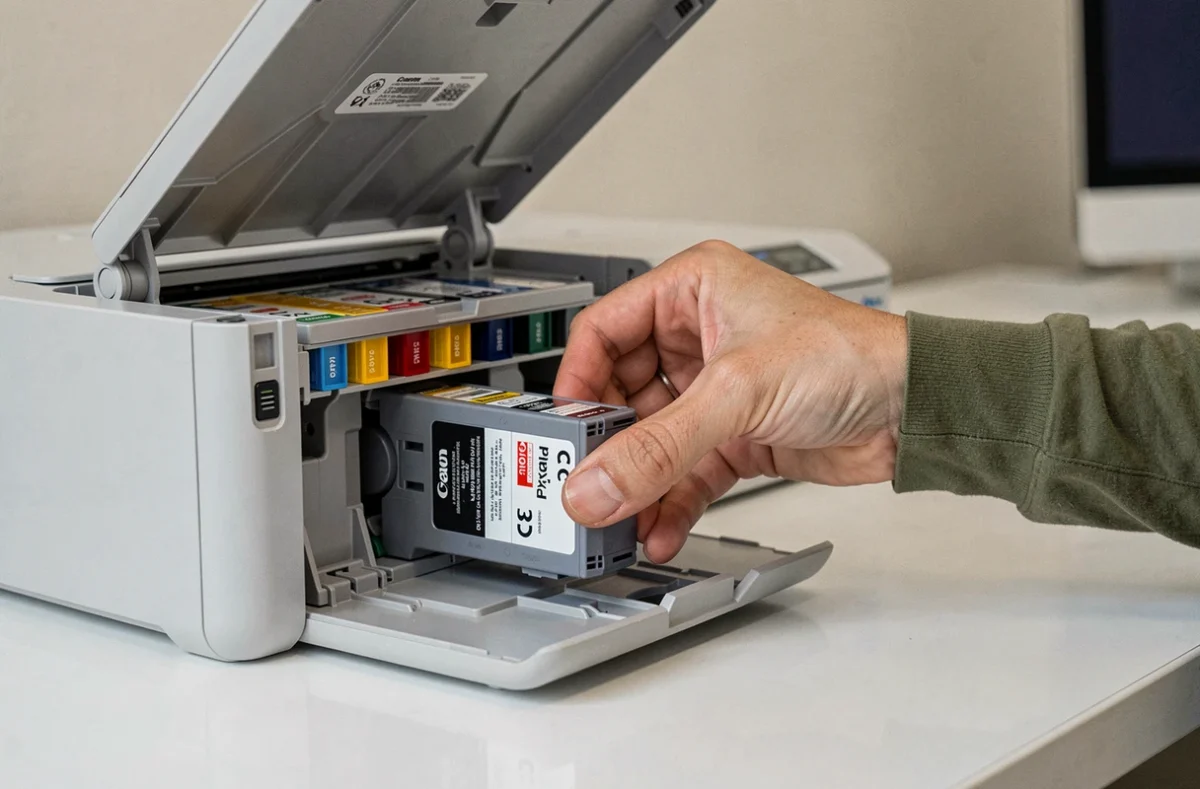
Poor-quality compatible cartridges can clog the nozzles faster than original cartridges. The choice of consumable has a direct impact on the frequency of necessary cleanings. If nozzle issues arise shortly after installing non-Canon cartridges, this link should be considered before any other manipulation.
Paper Feed Errors and Jams on Canon Pixma
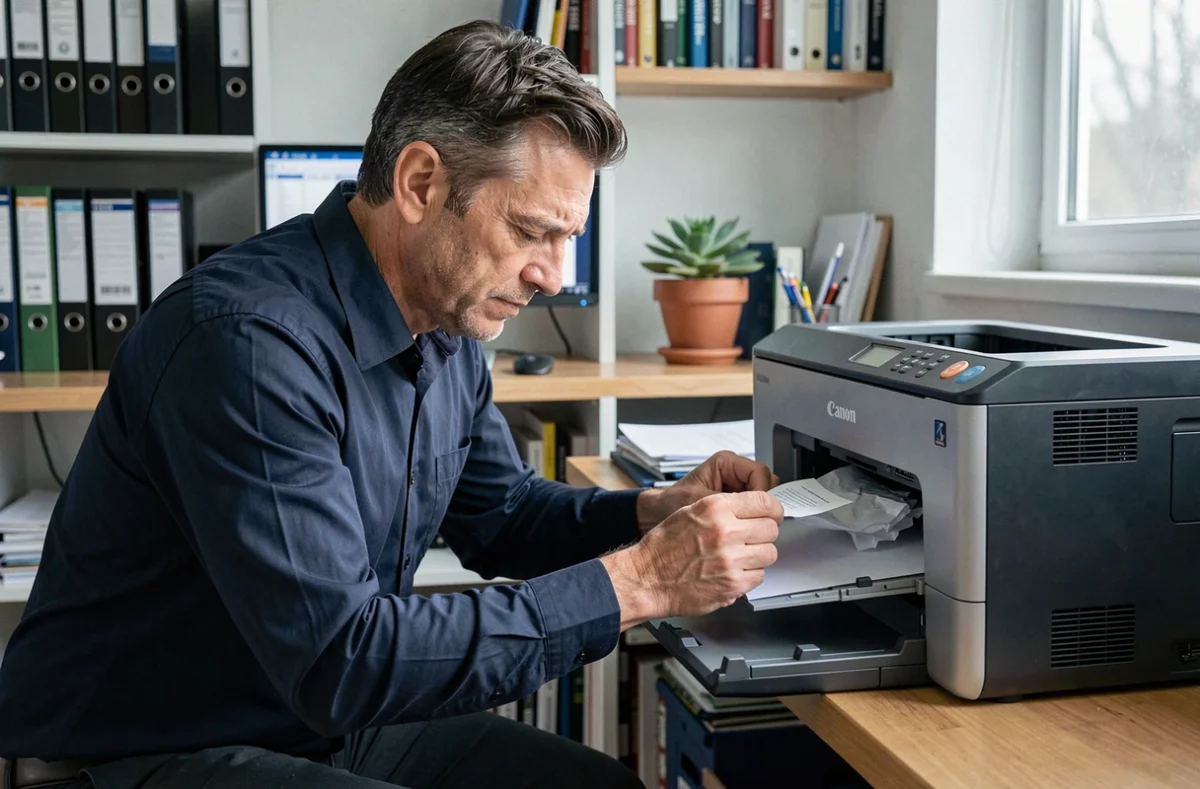
Paper-related errors do not always stem from a jammed sheet. On several Pixma models, the feed rollers lose their grip over time, especially if the printer is used infrequently or stored in a dusty environment.
Cleaning these rollers with a slightly damp cloth (without solvent) may be enough to restore paper grip. The menu on some models also offers a roller cleaning cycle that runs the mechanism empty.
The type of paper also matters: a weight too high for the rear tray or photo paper loaded the wrong way can cause jams that the printer sometimes indicates with a generic error code, without specifying the exact cause. Checking the paper type settings in the driver and matching them to the media actually loaded eliminates a significant portion of these false positives.
A Canon Pixma printing problem is rarely resolved with a single manipulation. Diagnosis first involves separating hardware failure from software failure, followed by checks that standard tutorials overlook, with firmware at the forefront. Each model has its specifics, and the duration of software support remains a determining factor for devices several years old.